
Change a role
- Open Users and find the person.
- Press Change on their row, then Change role.
- Pick their new role from the list. It saves as soon as you pick it. To leave it as it is, press Cancel.
It takes effect on their next click: they don't need to sign in again. The last active Admin's row has no Change button: it shows You, or Always active, instead. Make someone else an Admin first.
Deactivate someone who has left
- Open Users and find the person.
- Press Change on their row, then Deactivate, then Deactivate and sign out. For someone whose access has an end date, the menu says End now instead (see below).
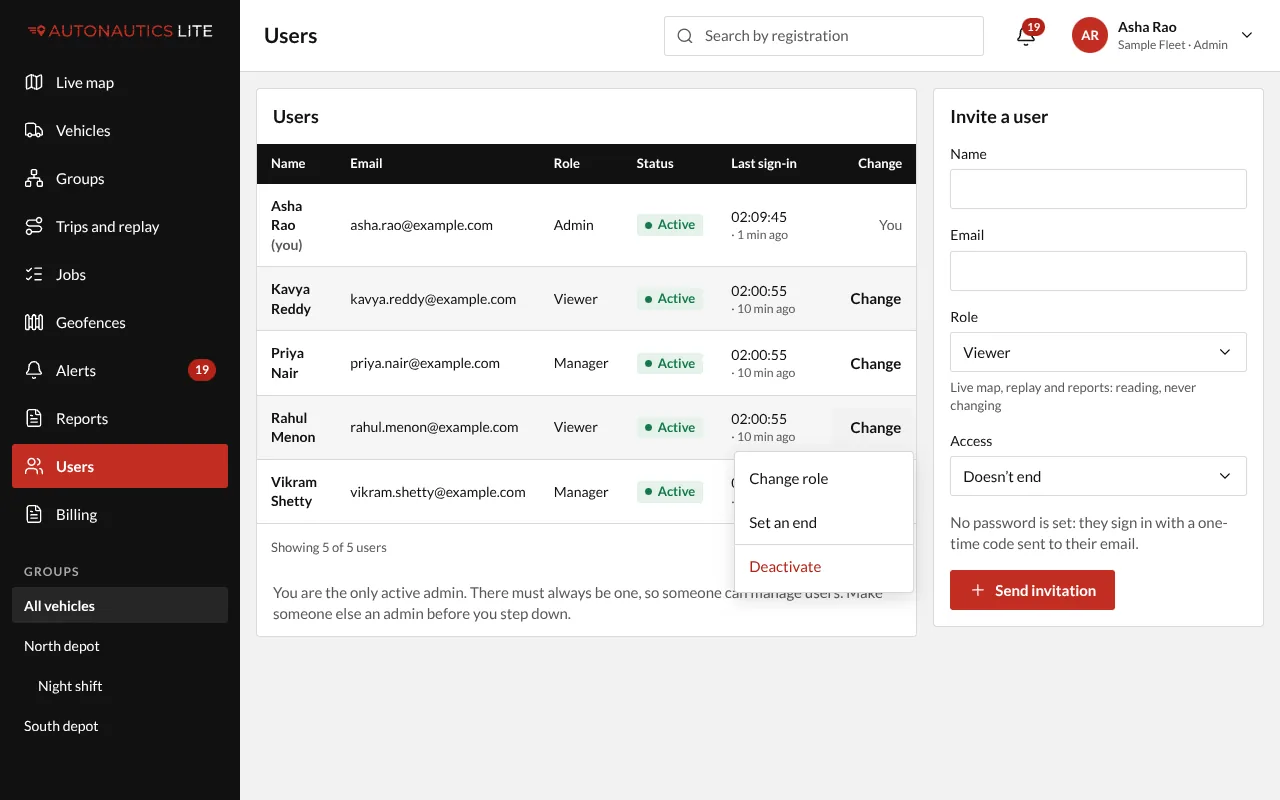
They are signed out everywhere at once, their phones stop getting alerts, and they can't sign in again. Their name stays in your records.
To let them back in, press Reactivate on their row (it takes the place of Change). If their access had an end date, choose a new one, or Doesn't end, and press Reactivate again.
Give or change temporary access
The Status column shows a person with an end date, for example "Ends in 3 days · Until 9 Oct".
- Change, then Set an end, for someone whose access doesn't end: choose For a number of days or Until a day, and press Save.
- Change, then Change end, to move it, or choose Doesn't end to remove it, and press Save.
- Change, then End now, stops their access at once: press End now and sign out.
At the end of their last day, they are deactivated automatically, exactly as if you had pressed Deactivate.
Good to know
- Your company always keeps one Admin whose access doesn't end. That Admin's row shows You if it's you, or Always active, where the others show Change: you can't deactivate or demote yourself while you are the last one. Make someone else an Admin first.
- Every change is recorded, with who made it.
- With one vehicle, Users isn't in the menu: open your app's address followed by
/users(see If you have one vehicle).