
Remove a vehicle that has left your fleet: sold, scrapped or returned. Its history is kept, and its licence is freed for the next vehicle you add.
Steps
- Open Vehicles and press Edit on the vehicle's row.
- Press Remove vehicle, under the editor.
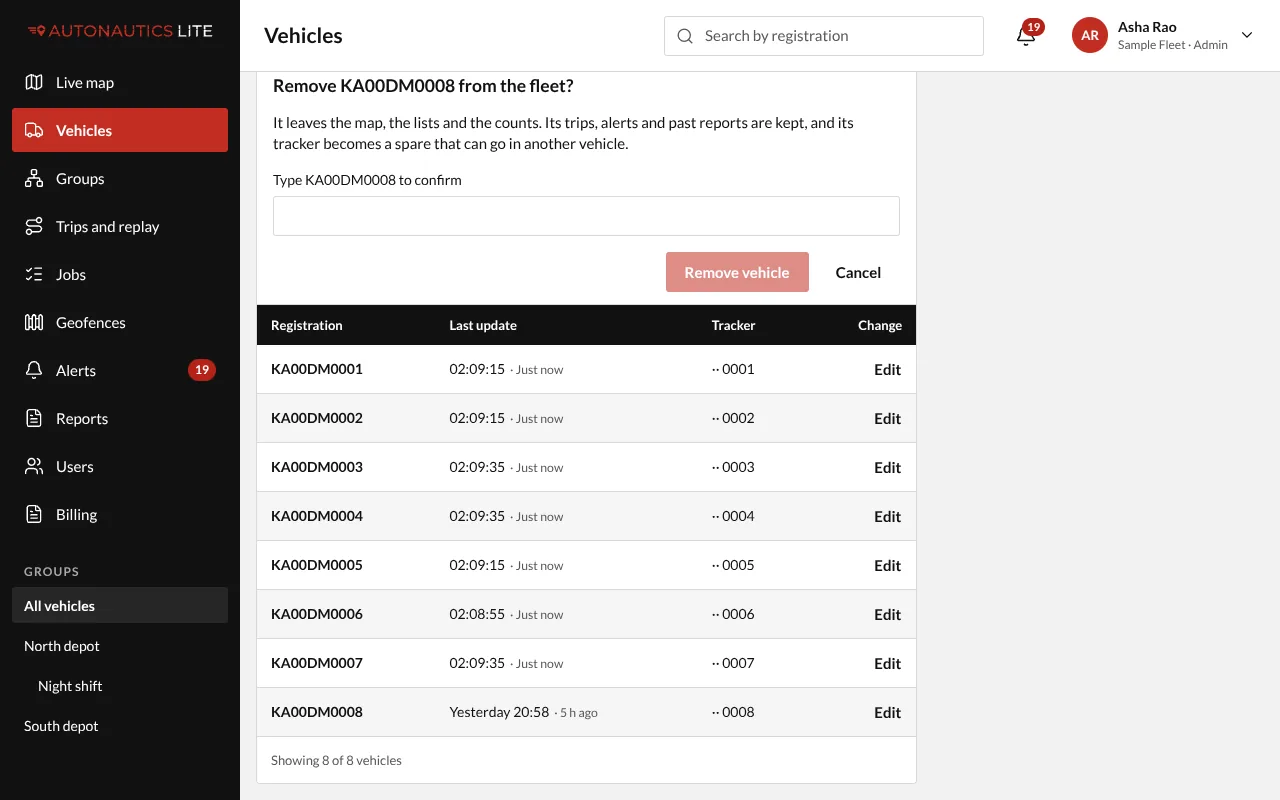
- The editor asks "Remove KA01AB1234 from the fleet?" and says what happens. Type the registration in Type KA01AB1234 to confirm, and press Remove vehicle.
The screen says "KA01AB1234 was removed from the fleet. Its trips and past reports are kept, and its tracker is now a spare."
What happens
- It leaves the live map, the vehicle list, searches, pickers and alerts.
- Its history stays in reports: past reports still show it, with "(removed)" after its registration. It can't be chosen in Trips and replay any more.
- Its tracker becomes one of your spare trackers, for another of your vehicles.
- Its licence is free again.
- Its share links stop working.
Good to know
- Removed vehicles, a button on the Vehicles page for Managers and Admins, lists every removed vehicle, with when and by whom.
- A removed vehicle can't be put back, but its registration can be added again, as a new vehicle with its own history.
- An immobilised vehicle can't be removed: restore it first.