
A vehicle needs only its registration and tracker. Switch on more fields if you need them.
Where
Open Vehicles, then the Settings tab: the Vehicle fields card.
Built-in fields
Switch each on or off. Each change saves at once.
- Make and model, such as Tata Ace.
- Driver name: who drives each vehicle now.
- Group: pick each vehicle's depot or branch on its form. The Groups screen works either way.
A field switched on shows on the add and edit forms, the vehicle list and the live map's vehicle card. Switched off, it shows nowhere, and what was filled in is kept.
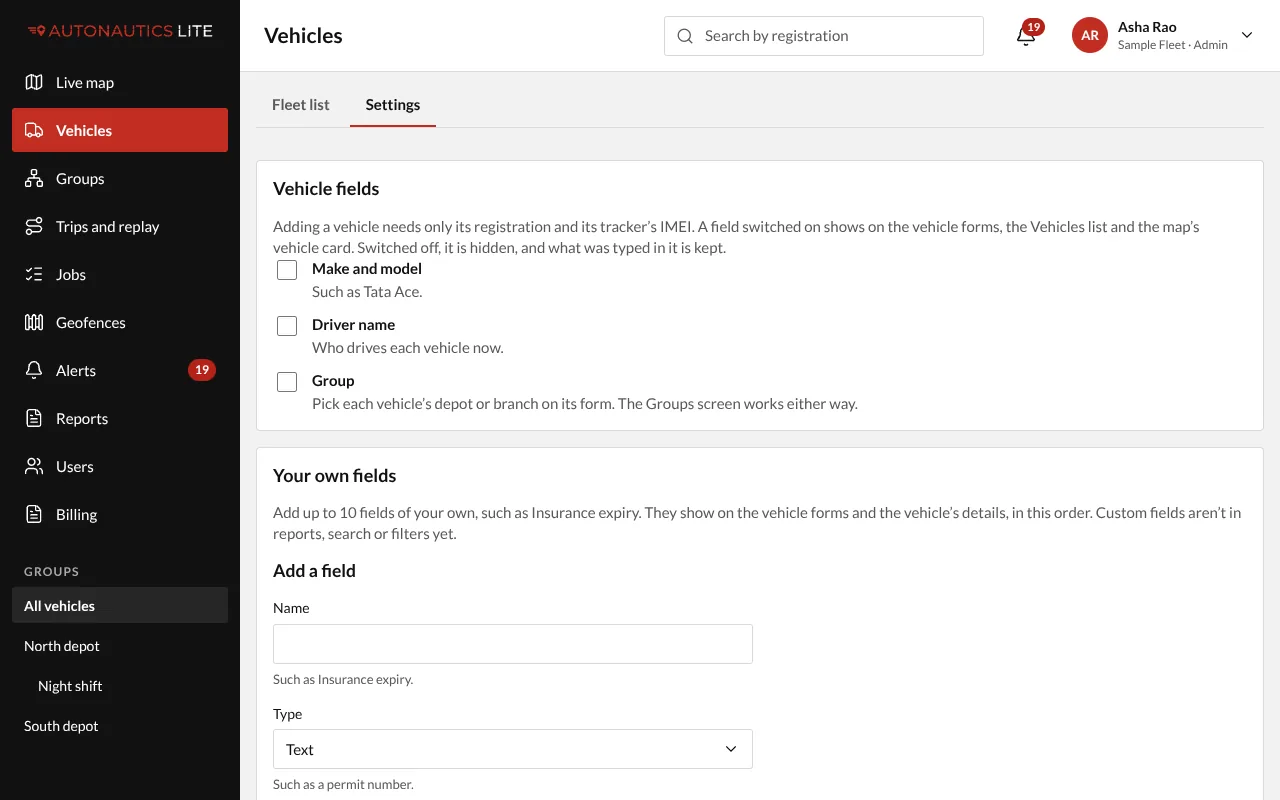
Your own fields
Below the switches, under Your own fields, add up to 10 fields of your own, such as "Insurance due" or "Fuel card":
- In Add a field, type its Name, choose its Type (text, number, date, or a choice from a list, with its Choices), and tick Required if every vehicle must have it.
- Press Add field. Use Up and Down to set their order on the forms, and Edit to change one.
Managers and Admins then fill them in on each vehicle's form.
- Remove a field to hide it everywhere. For 30 days you can Restore it, with what was filled in, from Removed fields; then it is deleted.
- A field's type can change only while no vehicle has a value in it.
- Your own fields aren't in reports, search or filters yet.
- With one vehicle, it's in the same place: Vehicles, then Settings (see If you have one vehicle).