
Groups are your depots and branches, as a tree: for example "South" with "Bengaluru" and "Mysuru" under it, up to 5 levels deep. The live map, reports and alerts can then show one group at a time.
Add a group
- Open Groups.
- Type the Group name, choose where it goes (Top level, or Under another group), and press Add group.
Put vehicles in a group
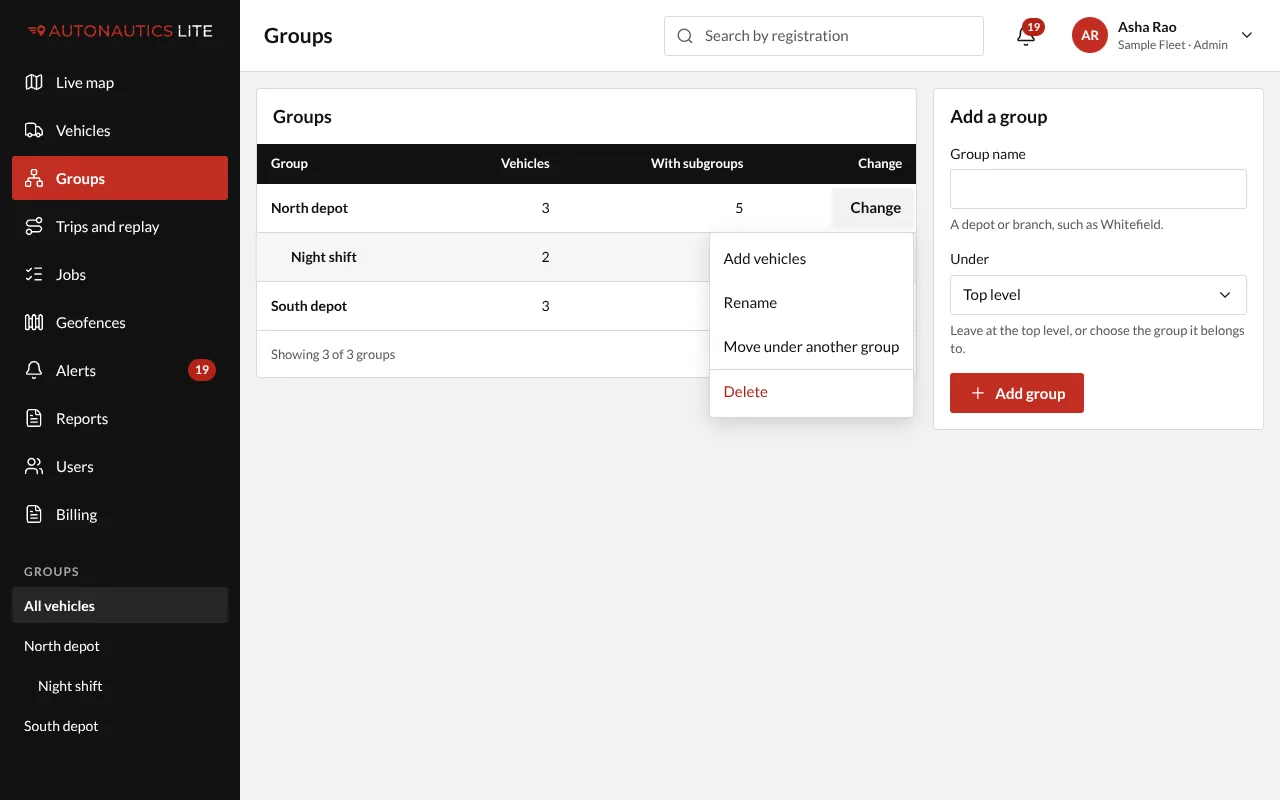
- Press Change on the group's row, then Add vehicles.
- Search by registration, tick the vehicles, and press Move N vehicles (it says how many) to move them in.
A vehicle is in one group at a time. Each group shows how many vehicles it has, with and without its subgroups.
Rename, move or delete a group
Press Change on the group's row, then:
- Rename: change its name and press Save name.
- Move under another group: choose where it goes under, and press Move group. A group can't go under itself or one of its own subgroups.
- Delete: press Delete group. A group with vehicles asks where they go first (Move vehicles and delete). Move or delete its subgroups first.
Good to know
- Your Admin can also show a Group field on each vehicle's form (see Choose the fields your vehicles show). The Groups screen works either way.
- With one vehicle, the Groups screen isn't in the menu (see If you have one vehicle).