
Give someone at your company their own sign-in. Each person has one of three roles:
| Role | Can |
|---|---|
| Admin | Everything, including users, licences and immobilising |
| Manager | Vehicles, groups, geofences, alerts and jobs, and everything a Viewer can |
| Viewer | Live map, replay and reports: reading, never changing |
Steps
- Open Users. The Invite a user form is on the same screen.
- Type their Name and Email, and choose their Role.
- For someone who needs access only for a while (a temporary driver supervisor, an auditor), choose Access: For a number of days, or Until a day. Otherwise leave it as Doesn't end.
- Press Send invitation.
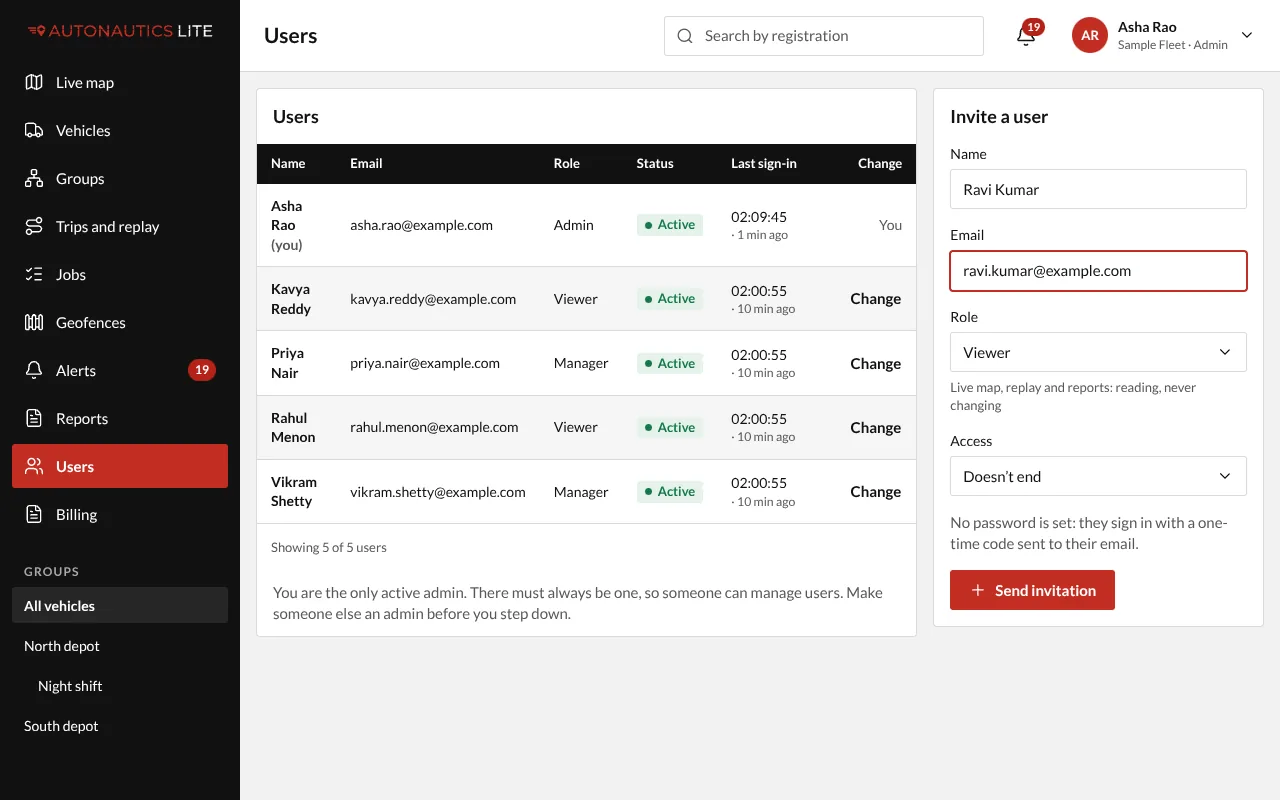
They get an email saying they've been added, with your app's address. They sign in with their email and a code we email them; they can set a password later.
Good to know
- "That email already has an account. Ask support." Each email can have one account only, anywhere. Use another email, or contact your provider.
- With one vehicle, Users isn't in the menu: open your app's address followed by
/users(see If you have one vehicle). - People are never deleted, so their history stays. To stop someone signing in, see Change a user's role, or deactivate them.