
Use this to bring many trackers at once, for example when you move from another tracking platform, or when the app says a tracker was sent to support for a check. Support checks they are yours, adds them to your trackers, and emails you.
A single new tracker that no one else has doesn't need this: it is added straight away on Add a vehicle. A tracker another company has is sent to support by itself when you try to add it.
Steps
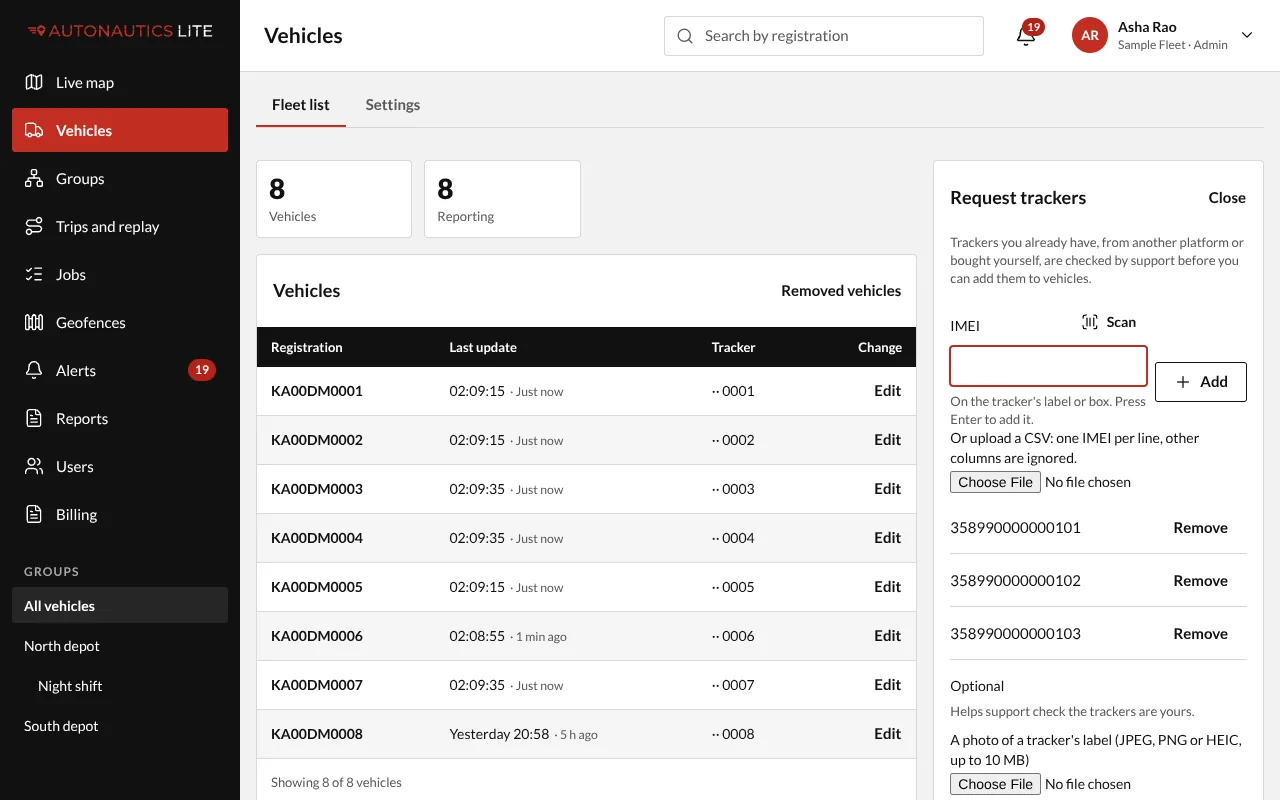
- Open Vehicles and press Request trackers, beside Add a vehicle.
- List the IMEIs, any way you like:
- type each one and press Enter;
- press Scan and scan each label in turn, then Done;
- or upload a CSV file: one IMEI per line (other columns are ignored, so an export from your old platform works as it is), up to 1,000.
- If you can, add a photo of a tracker's label, and your old platform's export. They help support check the trackers are yours.
- Press Send.
The app says "Sent to support for a check. We'll email you when it's done."
Follow it
Your requests shows each IMEI as Waiting for a check, Added to your trackers, or Not added, with the reason. You get one email when support has decided them all: "Your trackers are ready", or "We couldn't add your trackers".
Trackers added show at once under Your spare trackers on the add form.
Good to know
- Photos and files are deleted once support has decided.
- You can send 10 requests an hour; your company 20.