
Reports are tables of your fleet's figures for a period, to read on screen, download as a spreadsheet (CSV) or save as a PDF.
The seven standard reports
Every account has these seven, all open:
| Report | What it gives |
|---|---|
| Summary | Each vehicle's distance, driving time, trips, stopped time, idle time and top speed, with the fleet's totals. Tick Show km per day for a second table, Km per day, with each vehicle's kilometres on each day |
| Trip | Every trip: start and end, with times and places, duration, distance and top speed |
| Start & Stop | Every stop: when the vehicle arrived and left, for how long, and where |
| Geofence | Each time a vehicle entered and left a depot or zone, and how long it was inside |
| Alerts | How many alerts each vehicle raised, by kind (overspeed, left or entered a geofence, offline), and its top speed over the limit |
| Overspeed detail | Every time a vehicle went over your speed limit: when, for how long, where, and its top speed |
| Idling detail | Every time an engine ran while the vehicle stood still, for at least the time you choose (5 minutes to start), and each vehicle's idle time |
With Jobs on your account, the Jobs report lists each job, its stops reached and whether it was done. The Reports Plus add-on is for reports added later (After-hours use, Utilisation); none is in it yet.
Steps
- Open Reports. Summary is chosen to start.
- Choose the Report.
- Choose the vehicles: One vehicle, a group (with the groups under it), or All vehicles.
- Choose the Dates: Yesterday (to start), Today, Last 7 days, This month or Last month; or Choose dates, then the First day and Last day, up to 31 days.
- Press Run report.
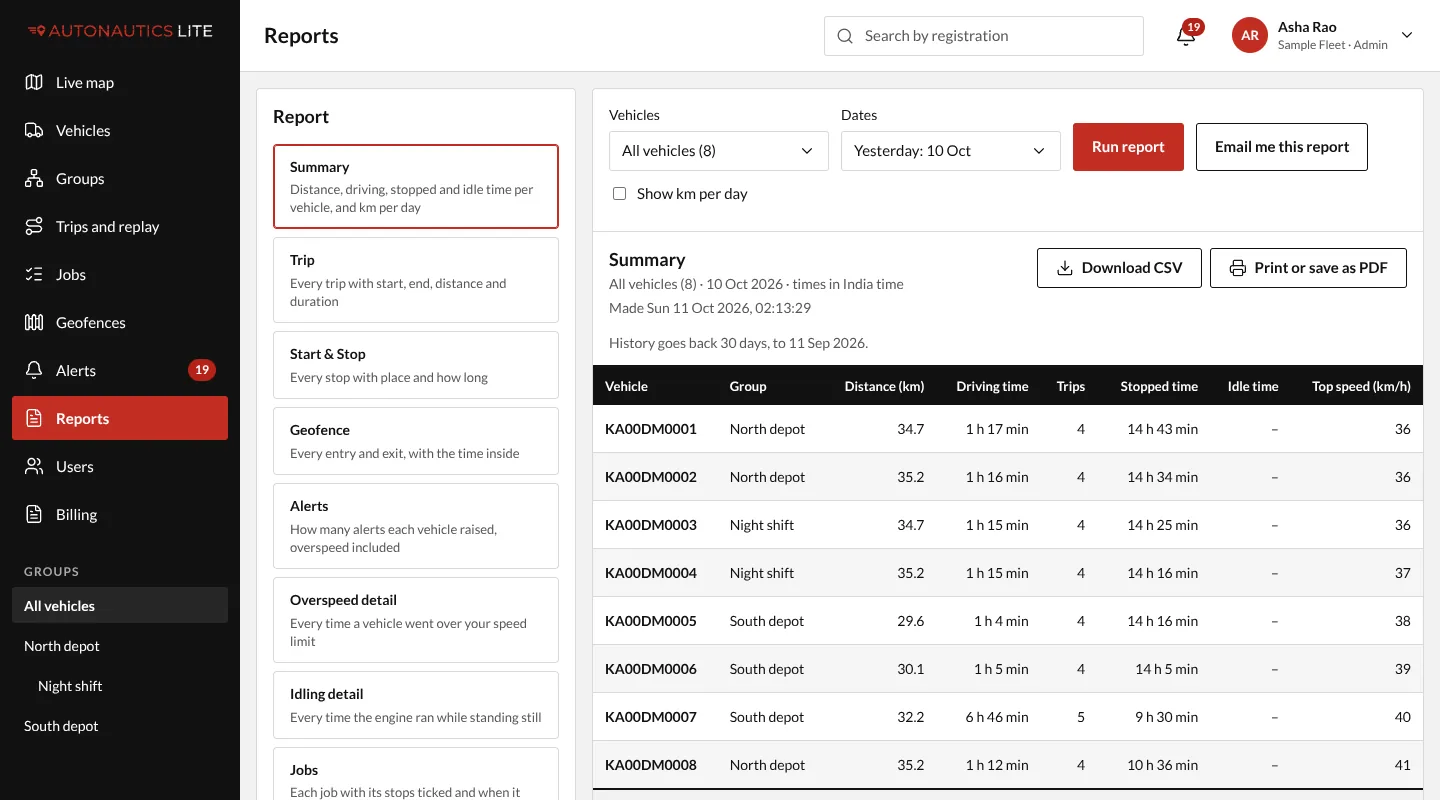
Then:
- Download CSV for a spreadsheet (it opens in Excel), with a total row at the end;
- or Print or save as PDF (in the print window, choose "Save as PDF"): it prints with your logo, the report's name, the vehicles, the period and the time zone at the top.
Good to know
- Times are in your own time zone, which the report states.
- How far back: reports go back as far as your history setting, and the page says so ("History goes back 30 days, to …").
- Idle time "Not reported" means the vehicle's tracker doesn't tell us whether the engine is on. It is never shown as 0 or guessed.
- "(removed)" after a registration means the vehicle has since left your fleet; its past figures stay in reports.
- Every morning or Monday by email: see Email yourself a report every day or week.