
Change its details
- Open Vehicles and press Edit on the vehicle's row. (On the live map, the vehicle's card has Edit too.)
- Change its registration, or any other field shown, such as its group or driver.
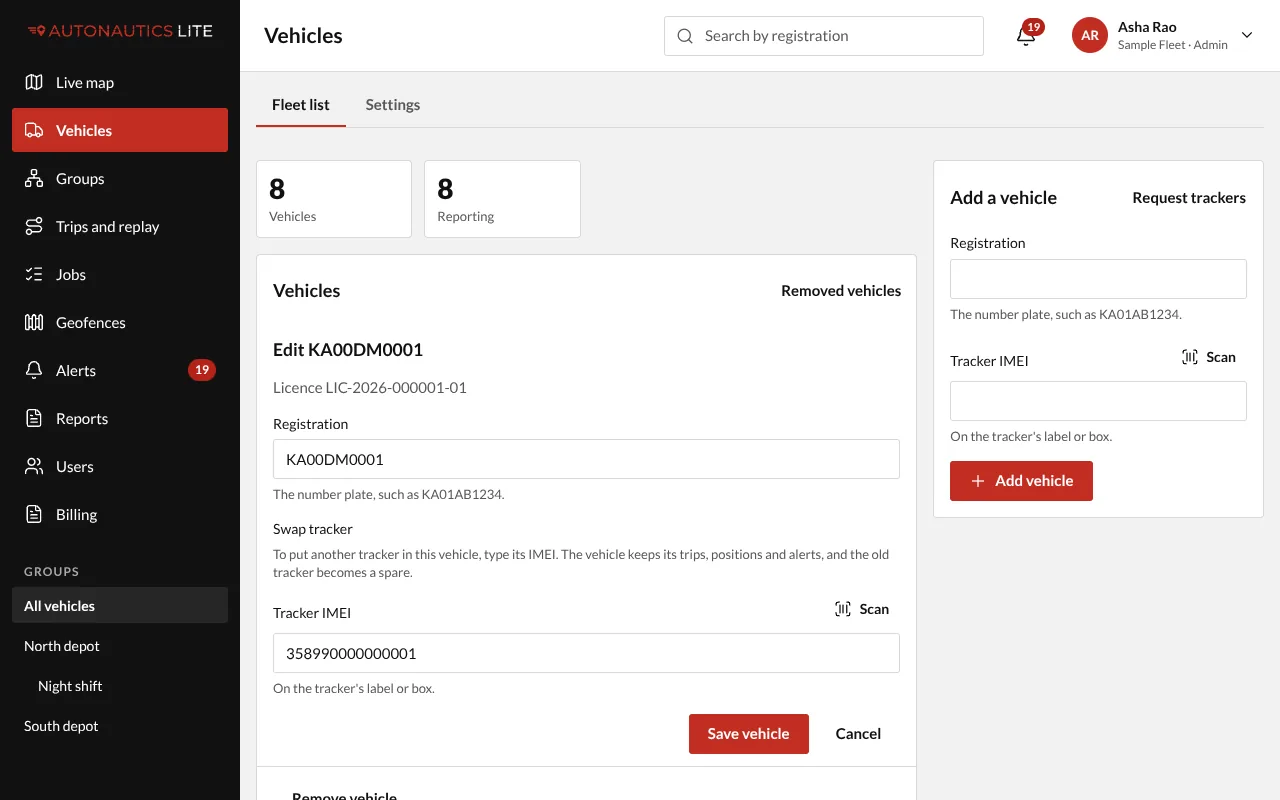
- Press Save vehicle.
Swap its tracker
When a tracker breaks, or is moved to another vehicle, the vehicle keeps all its trips and history: they belong to the vehicle, not the tracker.
- Open the vehicle's Edit.
- Under Swap tracker, scan or type the new tracker's IMEI, or pick one of Your spare trackers.
- Press Save vehicle. The screen says which tracker replaces which.
The old tracker becomes one of your spare trackers, ready for another of your vehicles. A swap uses no licence.
A new tracker that no one else has goes in straight away, and becomes one of your trackers; a swap uses no licence. A tracker another company has isn't put in: the app says "Sent to support for a check. We'll email you when it's done.", and the vehicle keeps its tracker, as on Add a vehicle.
Good to know
- An immobilised vehicle's tracker can't be swapped: restore it first (Immobilise a vehicle and restore it).
- A field your company doesn't show is never cleared by an edit.
- The vehicle's licence number shows here ("Licence LIC-…"), for your records.