
A job is the work one vehicle does on one day, as stops in order: a delivery round, service visits or pick-ups. Each stop is ticked automatically, with the time, when the vehicle gets there. Nobody ticks a stop by hand, so the record shows only what the tracker saw.
Jobs is in the menu only if your account has it.
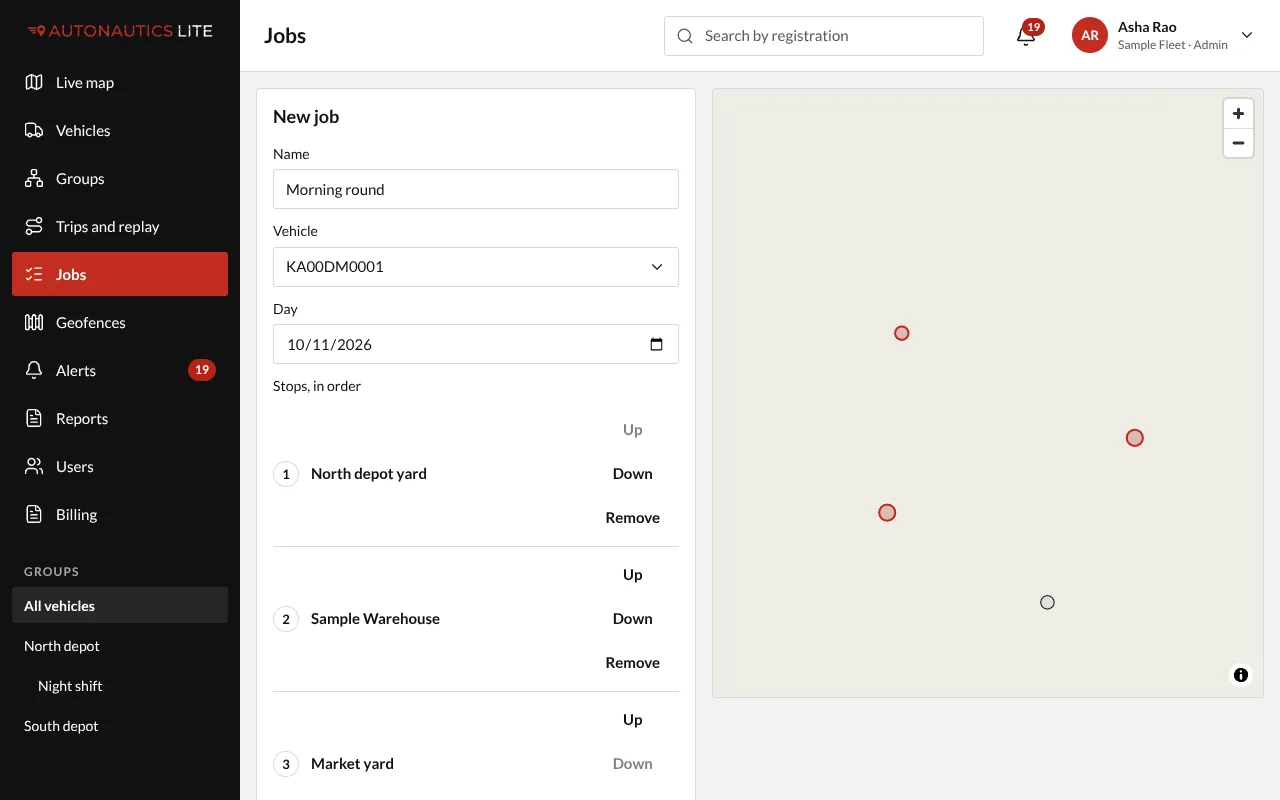
Make a job
- Open Jobs and press New job.
- Give it a Name, such as "Morning round", choose the Vehicle and the Day (today to start; up to a year ahead).
- Add the Stops, in order (1 to 50):
- a depot or zone you have drawn: pick it under Add a geofence;
- or a pin: press Drop a pin, then Place the pin and click the map; name it (such as "Customer gate") and set its radius (200 m unless you change it).
- Reorder the stops by dragging, or with Up and Down.
- Press Save job.
Follow it
The day's list shows each job with "3 of 5 stops", and Done with the time once every stop is reached. Open a job to see each stop ticked with its time, or Not yet. Stops can be reached in any order: real rounds change.
Change, copy or delete
- Change a job that isn't done: open it and press Edit (it shows only on a job for today or a later day that isn't done). You can rename it, and add, remove or reorder the stops not yet reached; the vehicle only while no stop is reached. Press Save changes.
- Copy yesterday's jobs to today: press Copy from yesterday (Copy from the day before on a later day), and choose the jobs to copy.
- Delete a job while none of its stops is reached: open it and press Delete job. After that it stays, as the record.