
A geofence is an area you draw on the map: a depot, where your vehicles are based, or a zone, any other place you care about, such as a customer's site. The app then records each time a vehicle enters or leaves it, and can alert you.
Steps
- Open Geofences and press New geofence.
- Give it a Name, such as "Okhla depot", and choose Depot or Zone.
- Choose its Shape:
- Circle: click the map where the centre goes, then set the Radius in metres (20 m to 50 km). Click again to move the centre.
- Shape: click the map at each corner, going round the edge (3 to 100 corners).
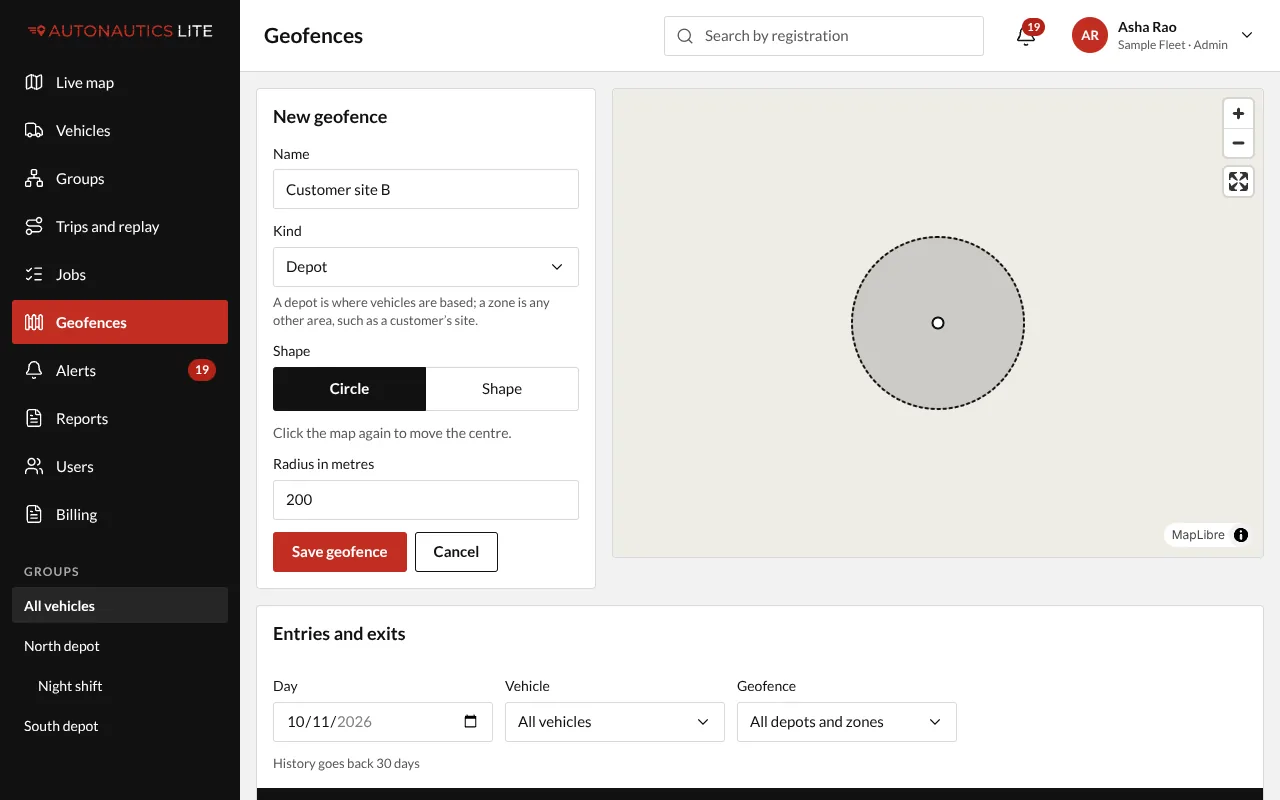
- Press Save geofence.
Every vehicle is checked against it from now on, including vehicles you add later.
Change or delete one
Click the geofence in the list, press Change Okhla depot (with its name), change its name or shape, and press Save changes. Or press Delete; it asks first. A geofence that a job uses today or later can't be deleted until that job is done or changed.
See who came and went
Under Entries and exits, choose a Day to see each time a vehicle entered or left a geofence, with the time. For a longer period, run the Geofence report (see Run a report).