
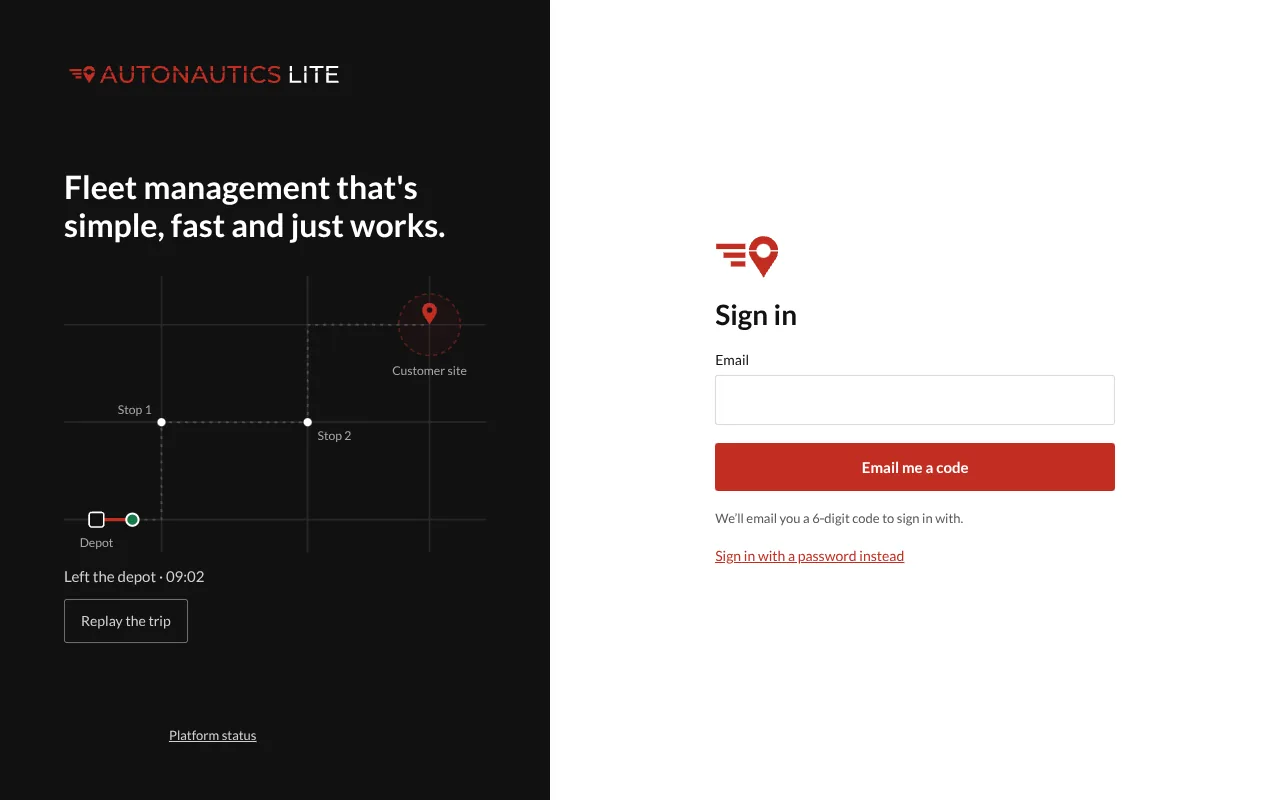
You sign in with your email address. Each time, you choose between a code we email you and a password.
Steps
- Open your app's address in a browser, on a computer or a phone. The address is in the invitation email you were sent.
- Type your email and press Email me a code.
- Open the email, and type the 6-digit code. It works once, within 10 minutes.
- Tick Remember this device if this is your own phone or computer: you then stay signed in here for 30 days. Leave it off on a shared computer.
- Press Sign in.
With a password instead: press Sign in with a password instead, type your email and password, and press Sign in. A password sign-in is never remembered: you sign in again when the browser closes. To set a password the first time, see Set or reset your password.
If it doesn't work
- No email after a few minutes? Check your spam folder. Then press Send a new code: only the newest code works.
- "Too many wrong codes. Try again in …" or "Too many wrong passwords. Try again in …": after several wrong tries in a row, sign-in waits, from a minute up to 15 minutes. Wait the time it says, then try again carefully.
- Your session has ended. Please sign in again. You were signed out on purpose: your session ran out, someone signed you out from another device, or your Admin deactivated you. Sign in again; if it still doesn't let you in, ask your Admin.
- Nothing arrives, ever. Your email may not have an account on this address. Ask your Admin to check that you were invited with this email.
Signing out
Open the account menu (your name or initials, top right) and choose Sign out. On a shared computer, always sign out: the next person then starts on their own screens.