
An alert rule says what to watch for, and who to tell. Each alert goes to the people on the rule by email, and to their phones if they turned notifications on.
Steps
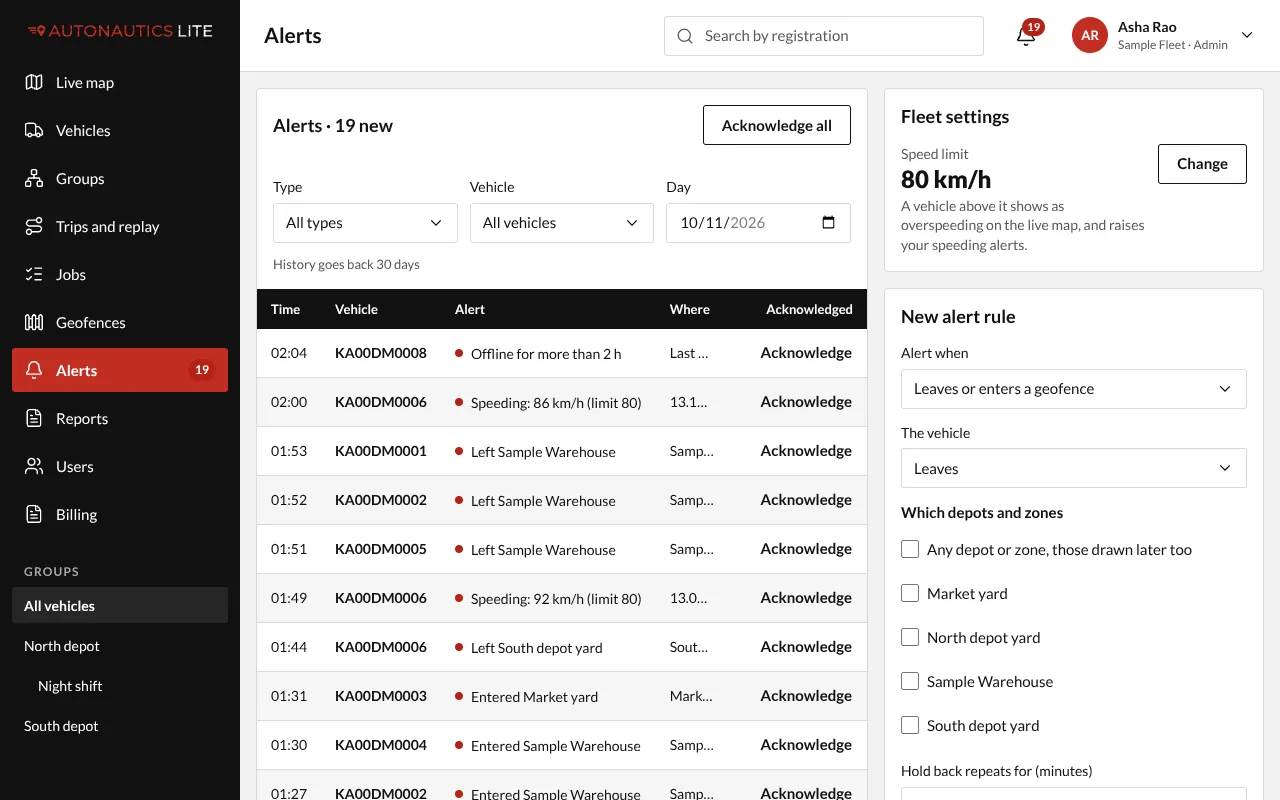
- Open Alerts and press New rule. The New alert rule form opens.
- Under Alert when, choose what to watch for:
- Leaves or enters a geofence. Under The vehicle, choose Leaves, Enters, or Leaves or enters. Under Which depots and zones, pick them by name, or choose Any depot or zone, those drawn later too.
- Speeding, over your fleet's speed limit (see Set your fleet's speed limit).
- Vehicle offline: type how long in Offline for (minutes), from 10 minutes to 24 hours (1,440 minutes).
- Under Who gets it, by email and phone, tick the people to tell.
- Set Hold back repeats for (minutes): the same alert for the same vehicle isn't sent again within this time (10 minutes unless you change it; from 5 to 1,440). This stops a vehicle waiting at a depot's edge from sending dozens.
- Press Save rule.
Every rule applies to all your vehicles.
Change, switch off or delete a rule
Under Alert rules, each rule has:
- Change: the Change the rule form opens; press Save changes;
- Delete: it asks first. The alerts the rule already raised stay in the list;
- an On / Off box, to switch it off for a while and on again.
Good to know
- No geofences yet? The form says "No depots or zones yet: draw them on the Geofences page." See Set up a geofence.
- A geofence deleted goes from every rule. A rule left with none says "Its depot or zone was deleted, so it was switched off. Change it to choose another."
- Someone deactivated, or whose access has ended, gets no alerts, even if still listed on a rule.
- The alert email says why the person gets it, and links straight to the alert.