
The Live map shows every vehicle where it is now, moving as it reports.
Steps
- Open Live map.
- Press a status tile, such as Offline, to list only those vehicles; press it again to list all.
- Click a vehicle to open its card: where it is, by street name, and its details.
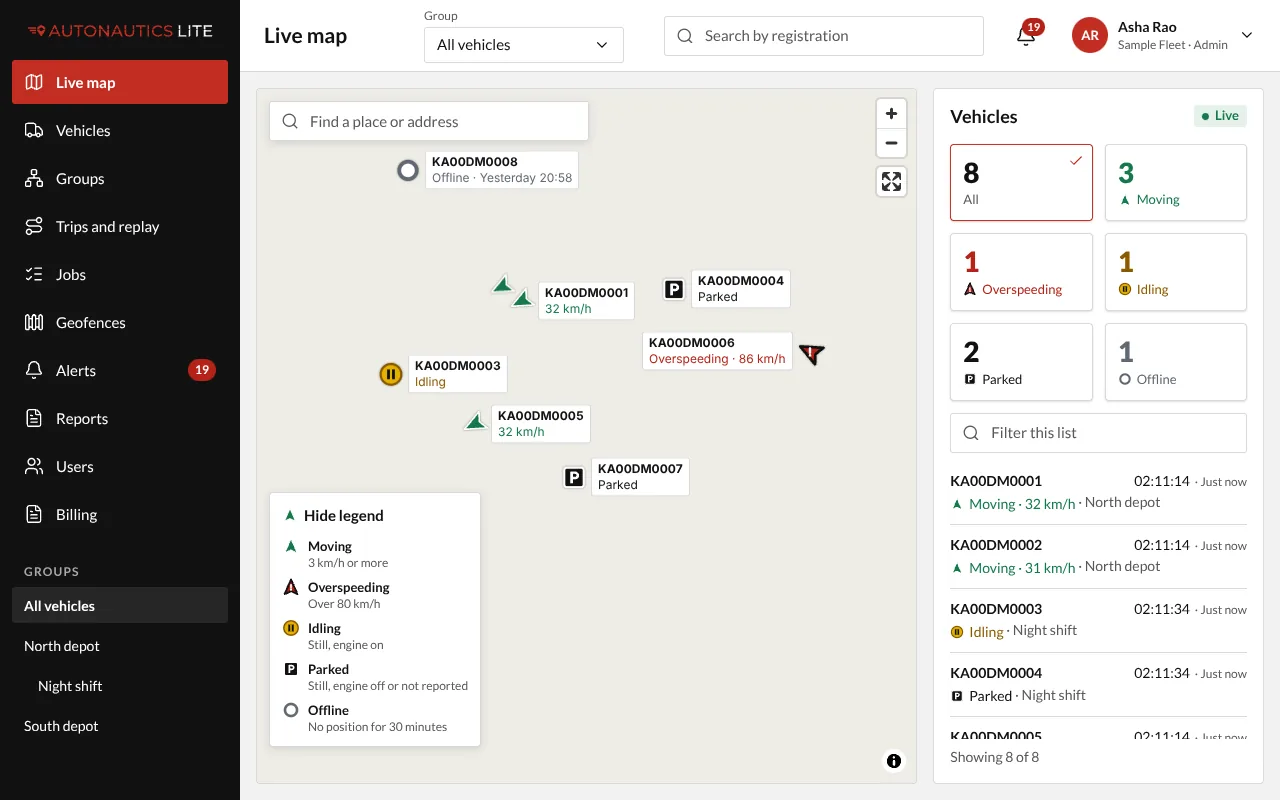
What you see
Each vehicle is a marker with its status. The colour, the shape and the word always go together:
| Status | Looks like | Means |
|---|---|---|
| Moving | Green arrow, pointing the way it's heading | 3 km/h or faster |
| Overspeeding | Red arrow with "!" | Over your fleet's speed limit |
| Idling | Yellow circle with a pause sign | Standing still with the engine on |
| Parked | Black square with "P" | Standing still with the engine off |
| Offline | Grey hollow circle | Nothing heard for more than 30 minutes |
The Legend button in the map's lower left corner shows these: press it to open the legend, and Hide legend to fold it again.
- The tiles above the list count the vehicles in each status. Press one to list only those vehicles; press it again to list all.
- Hover over a vehicle (or tap it on a phone) to see its registration, status, speed and last update, with Replay today.
- Click a vehicle to open its card: where it is, by street name, and its details. Managers and Admins see Edit there.
- Groups on the left show one depot or branch at a time.
- Search for a place: type part of an address in the map's search box, press Enter, and pick one of the places found. The map flies there.
Good to know
- "Ignition not reported" means the vehicle's tracker doesn't tell us whether the engine is on. Such a vehicle shows Parked when it stands still, never Idling.
- Offline is usually the vehicle, not the app: parked for days, out of mobile signal, or its tracker has lost power. See A vehicle shows Offline.
- Immobilised beside a vehicle means its engine has been cut by an Admin (see Immobilise a vehicle and restore it).
- The speed limit behind Overspeeding is your fleet's own; see Set your fleet's speed limit.